Manage my personal information

In ACORN’s Profile & Settings area, there is a Personal Information card with information that U of T has on file for you. This includes your:

  • Preferred, record and legal names
  • Legal status and country of citizenship
  • Gender
  • UTORid
  • Student Number

Changing your personal information

  • Names: The University Registrar’s Office website has information about what your preferred, record and legal names are, and how to add or change them.
  • Legal status and country of citizenship: You verify these with the TCard office as part of the process of starting your studies at U of T and getting your TCard and UTORid.
  • Gender: You can change this by submitting a form provided by the University Registrar’s Office to your divisional registrar.
  • UTORid: This cannot be changed. You can verify your UTORid as part of the process for verifying your legal status and country of citizenship with the TCard office. After submitting photo documentation to them, you will receive an email with an activation key that you can use to activate your UTORid.
  • Student Number: This cannot be changed.


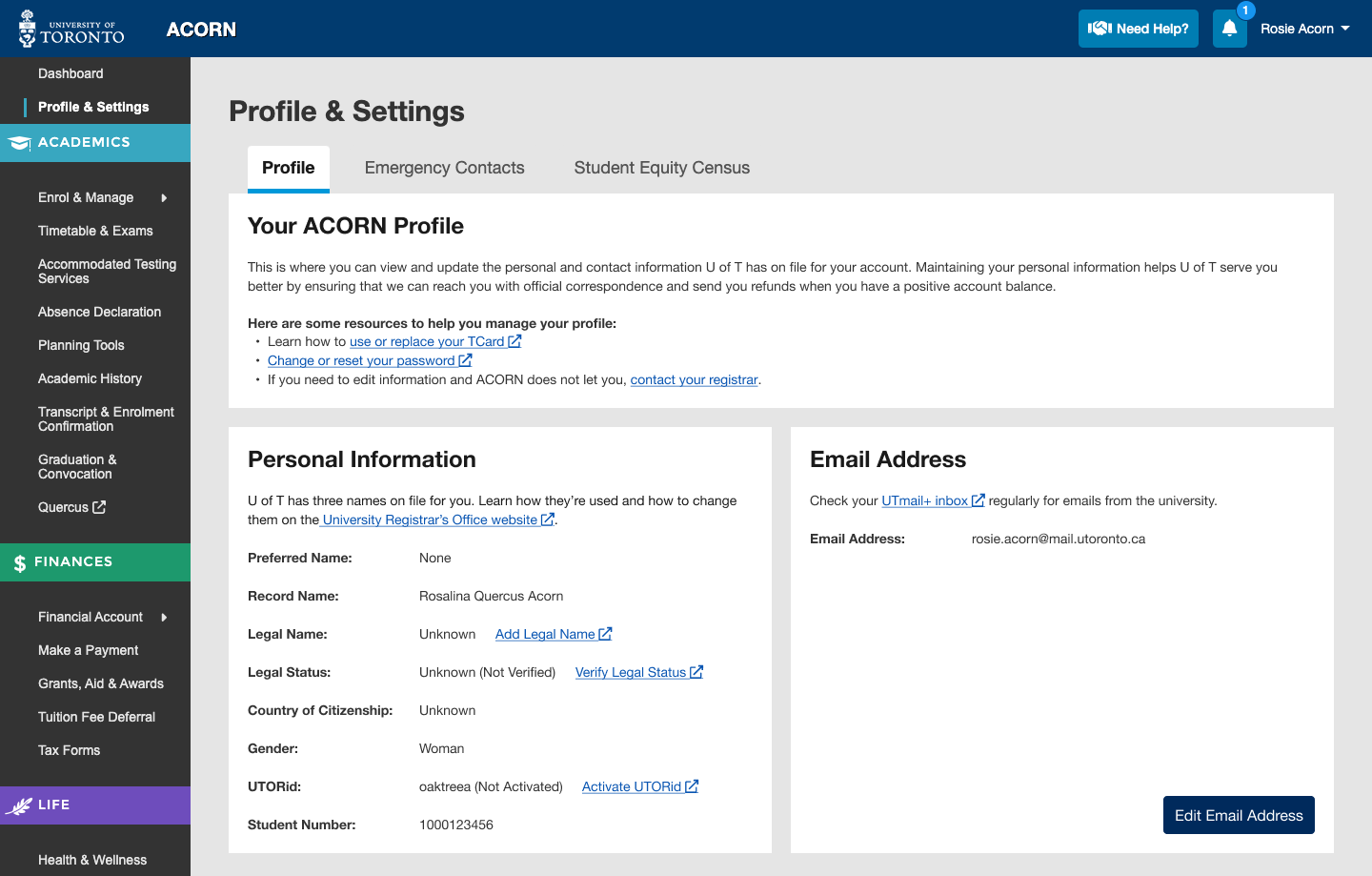
This is what your Profile page may look like when you have not added or activated several of pieces of your personal information.

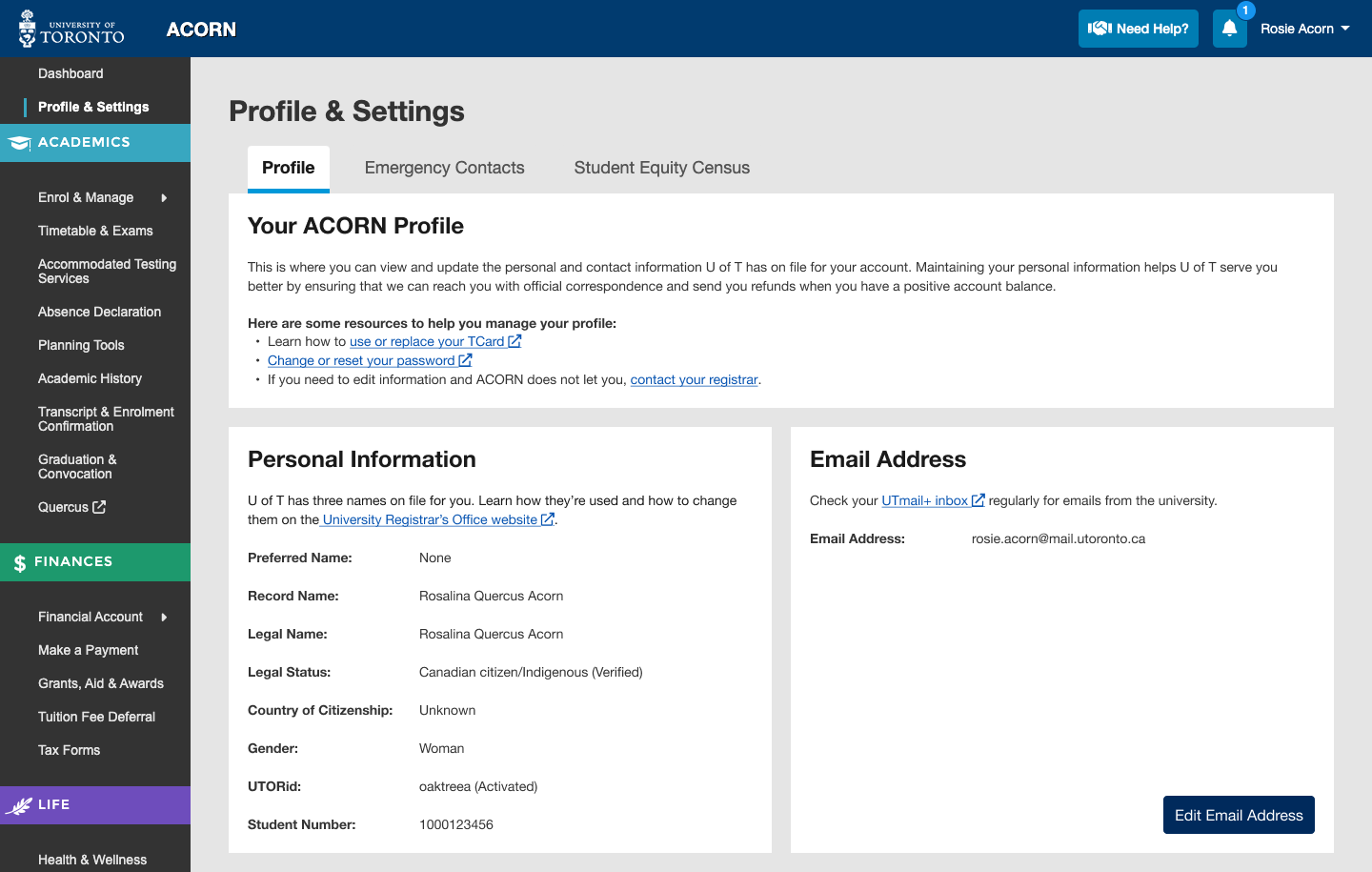
This is what your Profile page may look like when you have added and activated all necessary pieces of your profile information.

How do I get academic, financial or personal support?

Your divisional or faculty registrar’s office is your first stop whenever you need support with anything academic, financial or personal. ACORN will help you find the specific office relevant to you; just log into ACORN and visit the Need Help area. On the Contacts & Resources tab, select an issue topic and ACORN will direct you to either submit a ticket or write an email to the appropriate office. You can also browse well-being support resources on ACORN’s Well-Being Support tab on the Need Help page.

Read about how to contact your registrar through ACORN, or access a full list of registrar’s offices on the University Registrar’s Office website.

Add or edit my emergency contacts

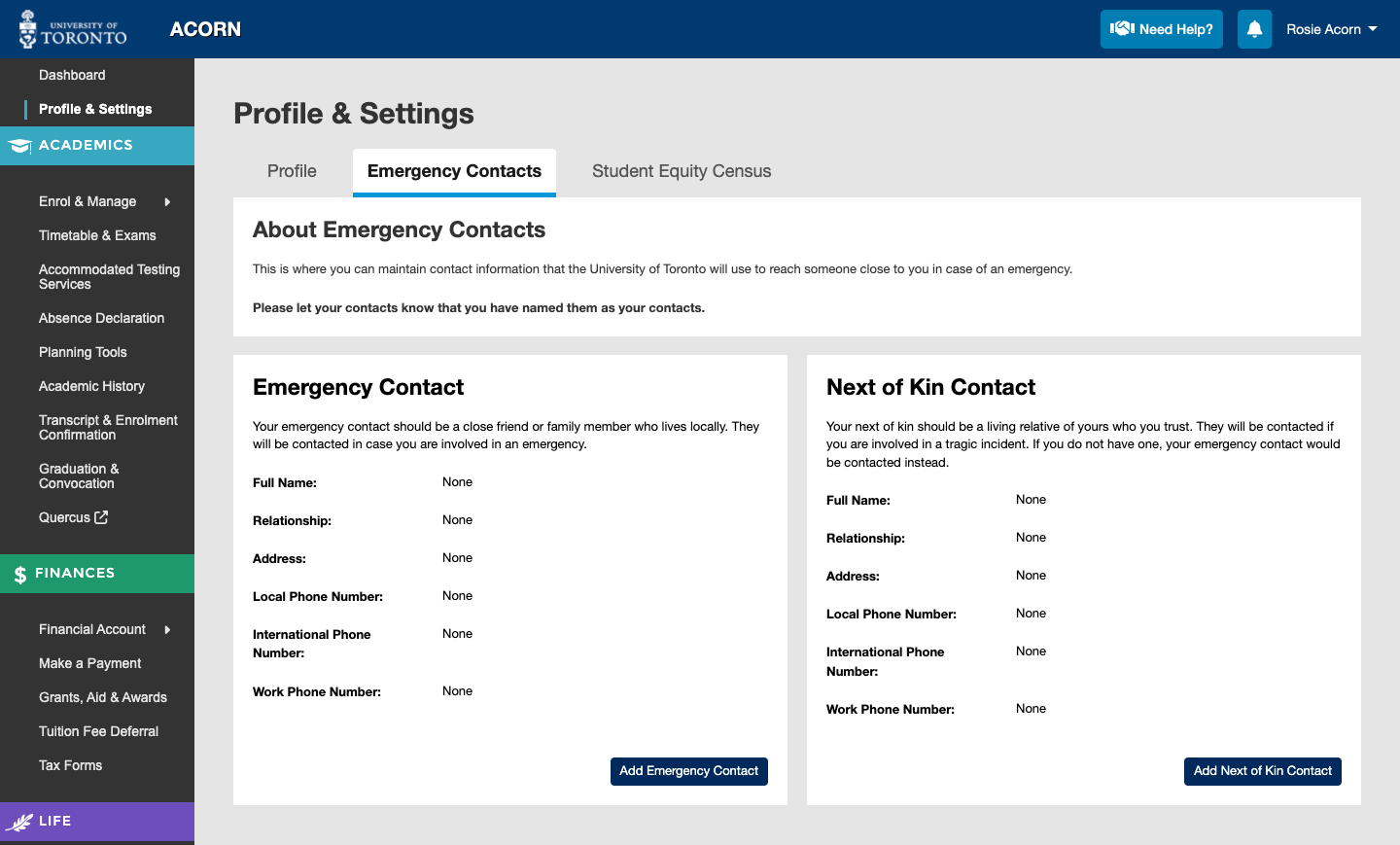
ACORN allows you to enter two types of contacts on the Emergency Contacts page: an emergency contact, and a next of kin contact. These contacts should be different people. We recommend adding both so that there are multiple people that U of T is able to contact in an emergency. However, entering a next of kin contact is optional.

An emergency contact should be a close friend or family member who lives locally. They will be contacted in case you are involved in an emergency.

A next of kin should be a living relative of yours who you trust. They will be contacted if you are involved in a tragic incident. If you do not have one, your emergency contact would be contacted instead.

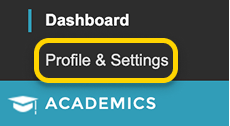
To add or edit your emergency contacts, go to ACORN’s Profile and Settings page.

"Profile and Settings" is highlighted in ACORN's navigation menu.

Adding and Editing Emergency Contacts

The process of adding an Emergency Contact and a Next of Kin contact is exactly the same. The screenshots in this how-to article highlight the Emergency Contact form. The Next of Kin Contact form works the same way.

  1. On the Emergency Contacts tab on the Profile & Settings page, select the Add Emergency Contact button to add your emergency contact. If you already have a contact, you will be able to edit their information instead.
    The Emergency Contacts page with the "Add Emergency Contact" button present.
  2. There are four steps to adding your emergency contact. For the first step, add their first name, their surname and select an option from the list that represents what their relationship is to you. Next, select Continue.
    Step 1: Name & Relationship asks for a First/Preferred Name, Surname and Relationship.
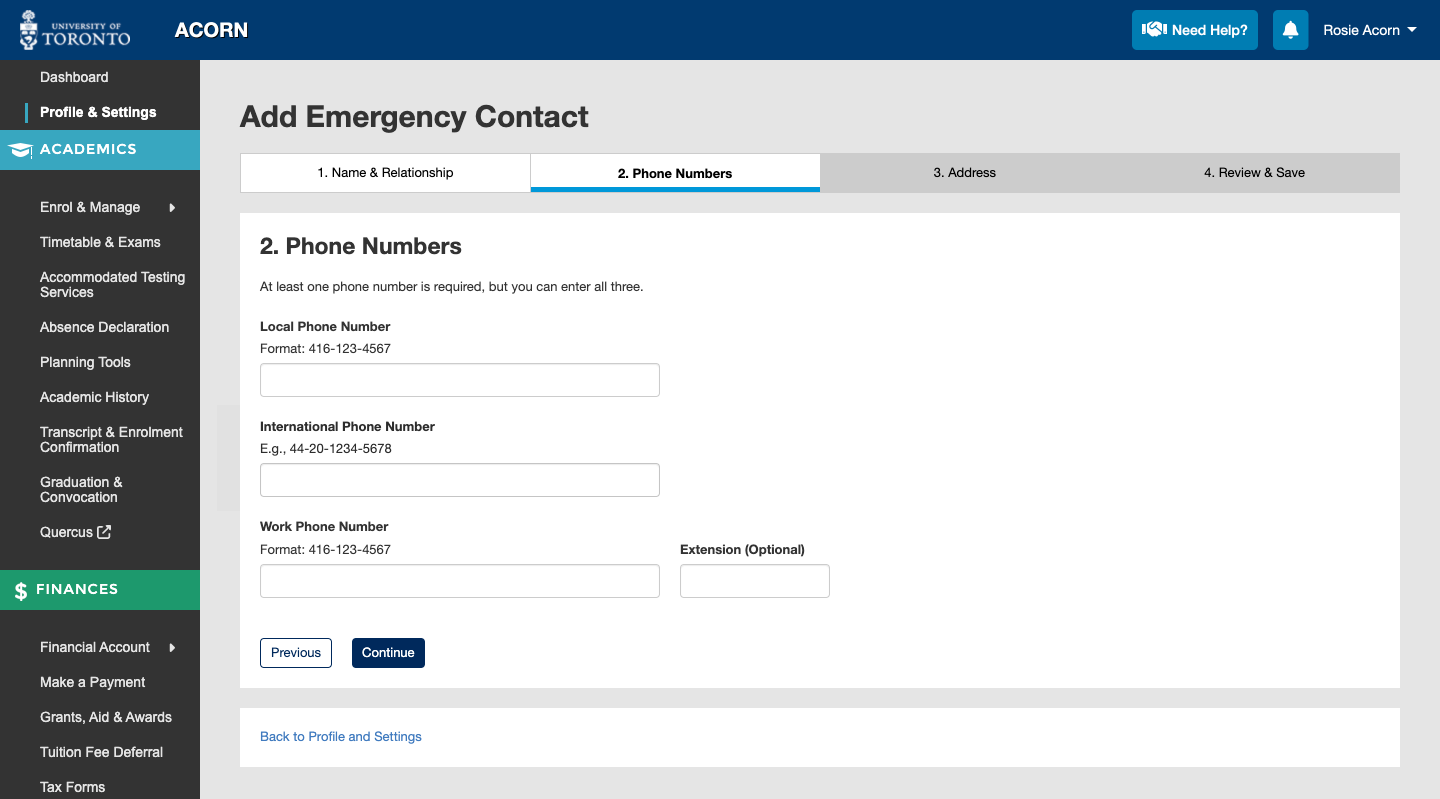
  3. In the second step, add at least one phone number that a staff member at U of T could use to reach your contact in case of an emergency. You do not need to add all three numbers. When entering phone numbers, please follow the provided format which uses hyphens between each set of digits.If you add your contact’s work number, including an extension is optional. Once you’ve added at least one number, select Continue.
    Step 2: Phone Numbers asks for at least one phone number, which can be local, international or a work number.
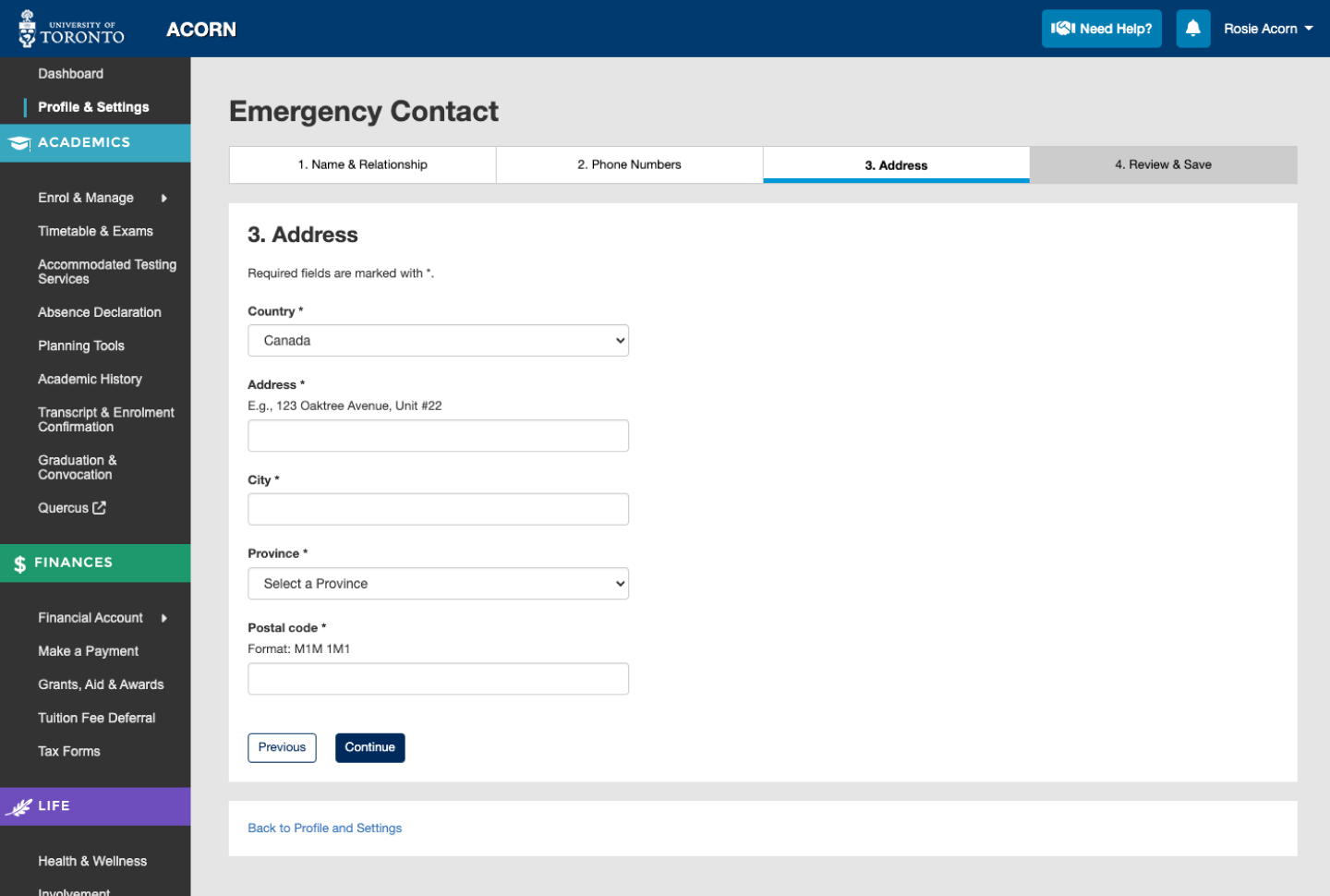
  4. In the third step, add your emergency contact’s address. ACORN asks for the country, mailing address, city, province and postal code. Note that there is no Address Line 2 field available in this form, unlike in the Address form for your own address. Canada is the selected country by default. If you select U.S.A, you will be able to enter a State and a ZIP Code. If you select any country other than Canada and U.S.A, you will be able to enter a Province, State or Region, and adding a Postal or ZIP Code will be optional. When you’re ready, select Continue to move on.
    Step 3: Address asks for your emergency contact's address, including the country, address, city, province and postal code.
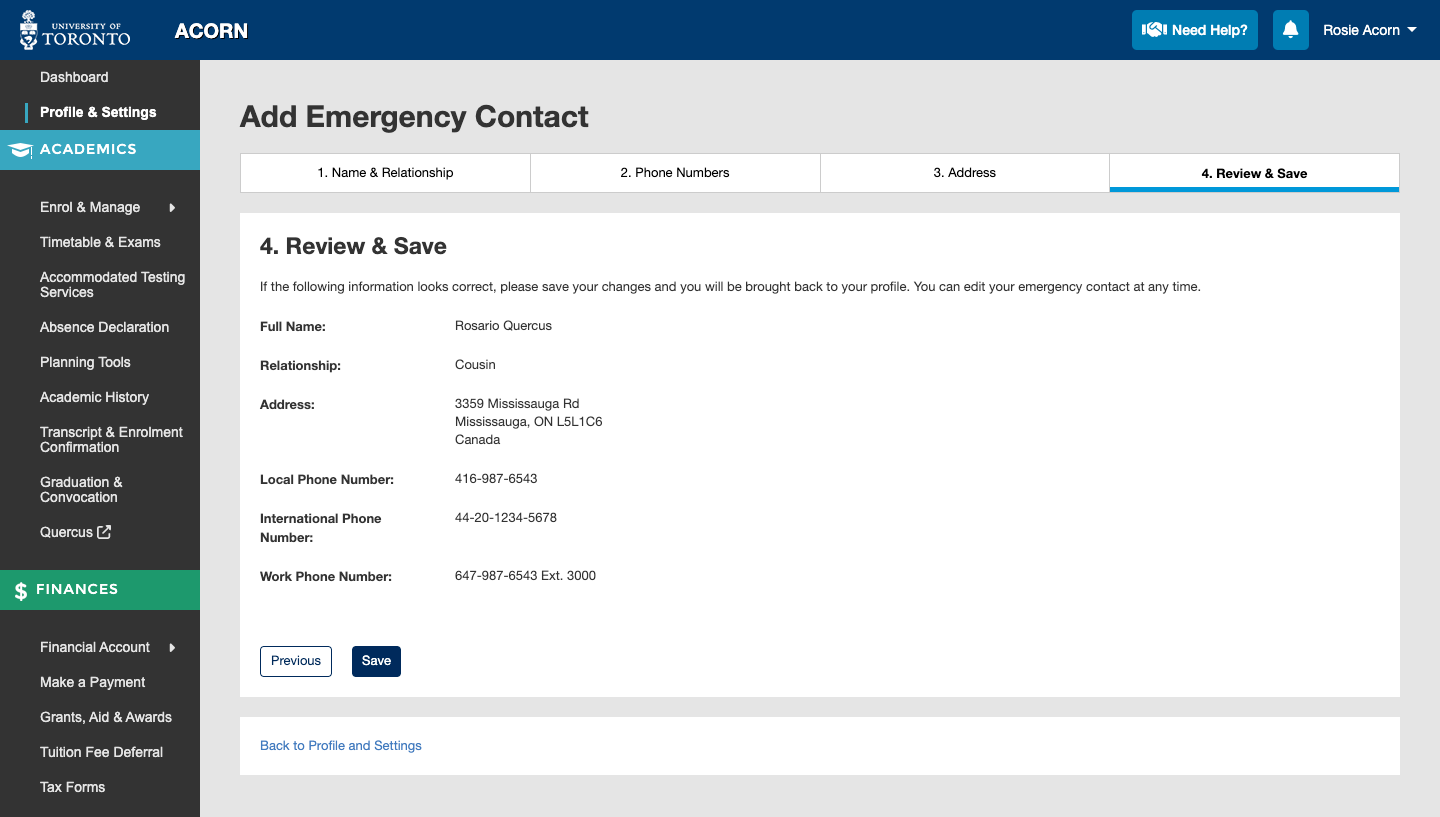
  5. In the fourth and final step, review the information you provided about your emergency contact and ensure that it is correct. To change anything, you can go back to the previous steps through the step list at the top, or by selecting “Previous”. If the information looks correct, save it.
    Step 4: Review & Save allows you to review the information you entered before saving.
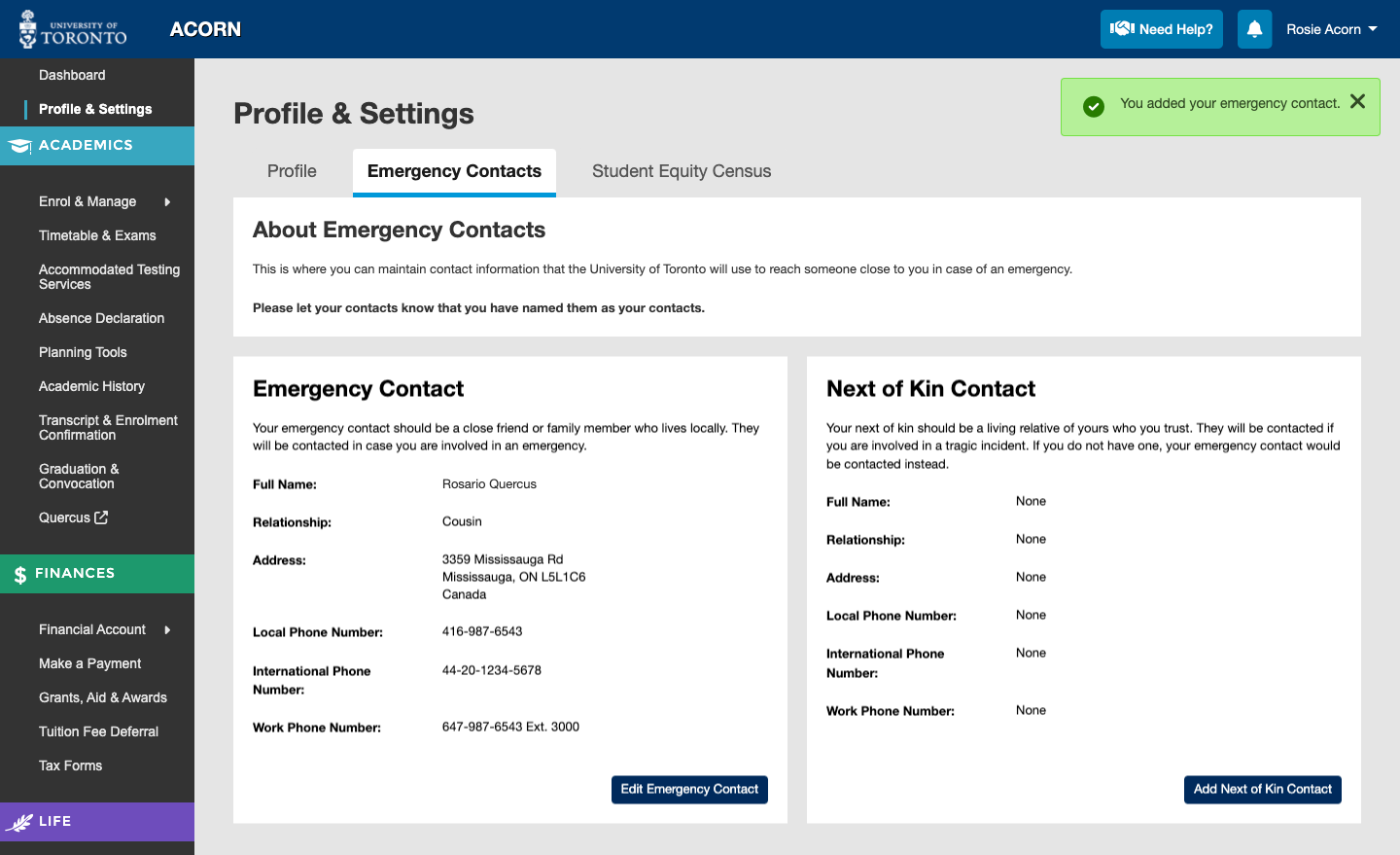
  6. After saving, you will be taken back to your profile and a success message will display. You can edit your emergency contact’s information at any time by selecting the Edit Emergency Contact button.
    A success message appears and the updated email address is displayed.
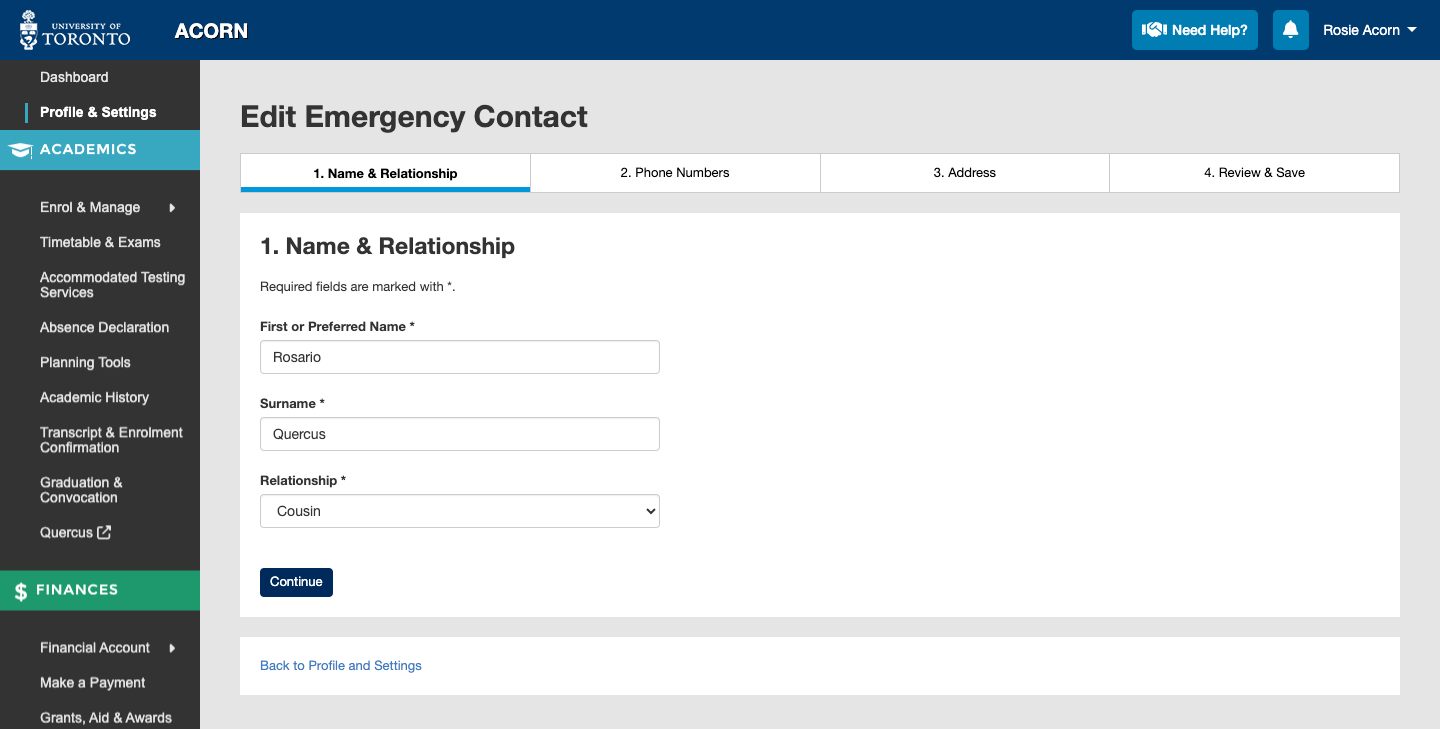
  7. On the Edit Emergency Contact page, the information you previously entered will be available to edit.
    On the Edit Emergency Contact screen, your previously entered information will be available to change.

Emergency Contact Errors

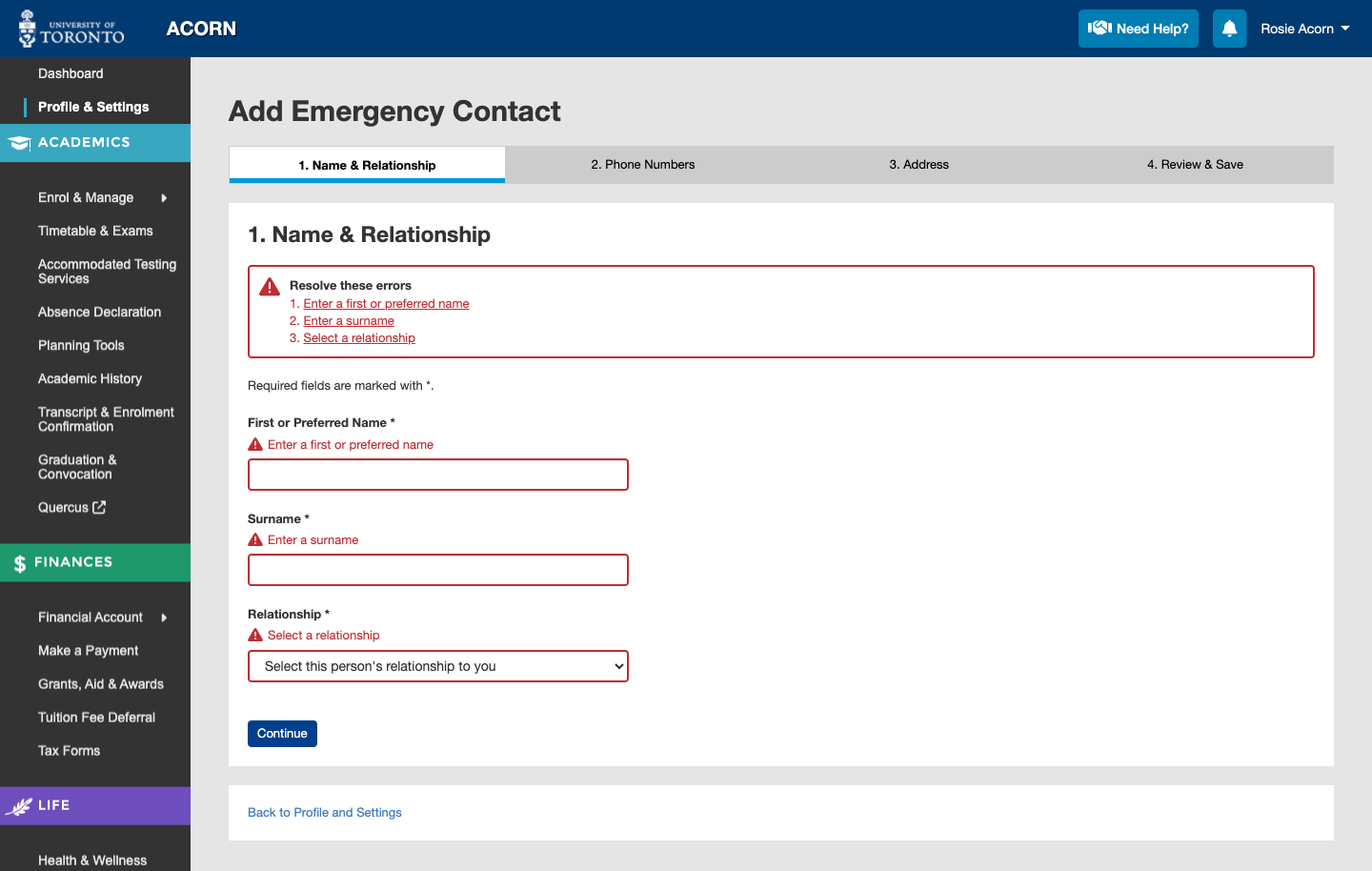
ACORN may tell you about errors that need to be resolved before saving your contact. If you encounter an error, a list of what went wrong will appear at the top of the form. These are examples of errors that you might encounter: 

  • Required fields were left empty. If a field has an asterisk (*) next to it, it is mandatory. If it has the words (optional) next to it, it is optional. On the Phone Numbers step, it is mandatory to add at least one number, but adding all three is not mandatory.
  • Information entered was too long. In this case, ACORN will tell you the maximum number of characters to enter.
  • Phone numbers or postal codes are in an incorrect format. For each field that has particular formatting requirements, an example of the correct format is presented above it to guide you. 
  • Unsupported text characters are added. Certain characters cannot be added to ACORN, such as accented characters. The error message will tell you which ones are allowed.

On the Name & Relationship screen, and error summary shows links to three errors on the page.

Add or edit my Social Insurance Number

If you plan on working, accessing government programs and benefits or filing a Canadian tax return, you will need to add your Social Insurance Number (SIN) or Individual Tax Number (ITN) to ACORN.

U of T asks for this number because your SIN or ITN needs to appear on the tax forms that the university provides to you. If you are not eligible or required to file a Canadian tax return, then you also do not need to enter your SIN or ITN. Visit the Student Accounts website to learn more about the SIN, ITN, and who needs to add one to ACORN.

  1. If you have determined that you need to add your SIN or ITN to ACORN, first go to the Profile and Settings page.
    "Profile and Settings" is highlighted in ACORN's navigation menu.
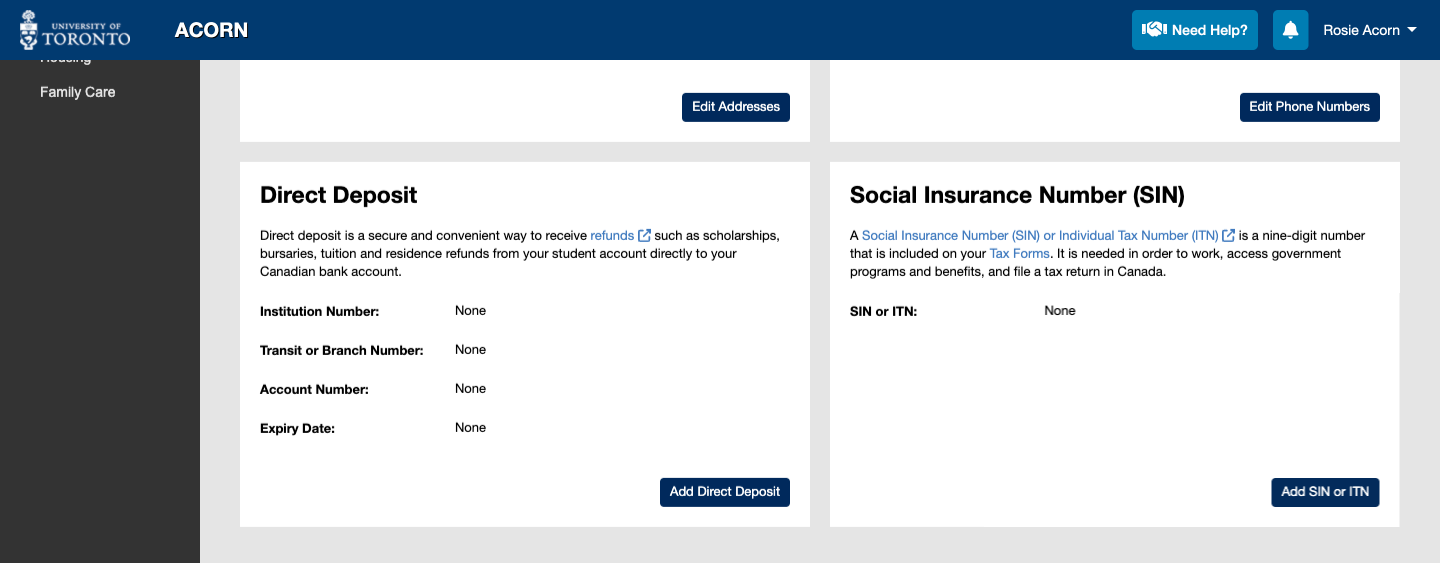
  2. On the Profile tab within the Profile & Settings page, go to the Social Insurance Number (SIN) card. If you have already added a SIN or ITN to ACORN, the last three digits will be displayed. If you have not, you will see “None”. The full number will not be displayed in ACORN after you save it in order to protect your privacy. To add a SIN or ITN for the first time, select the Add SIN or ITN button.
    Within ACORN's Profile and Settings page, "Social Insurance Number (SIN)" is featured.
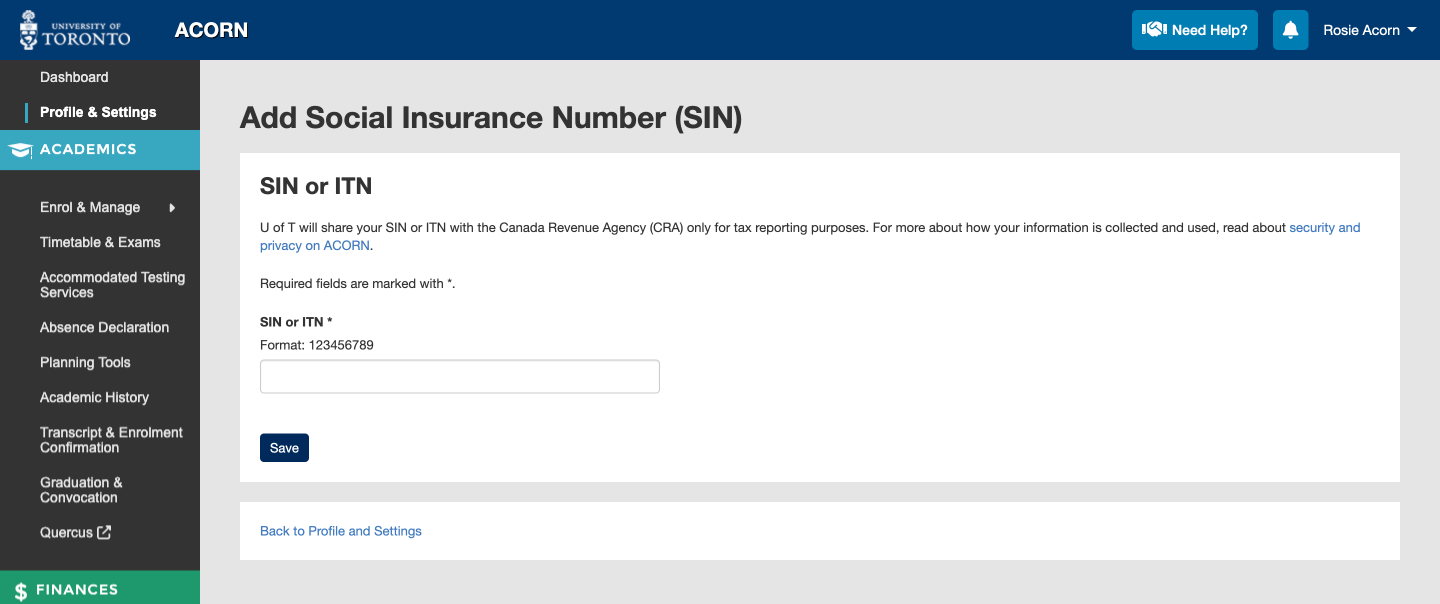
  3. On the next page, you can enter your SIN or ITN. Even if you entered one previously, you will need to re-enter it. Your SIN or ITN should be nine digits long. You do not need to add spaces or hyphens.
    The Add page contains a single field for you to enter a 9-digit SIN or ITN.
  4. After saving, you will be taken back to your profile and a success message will display. You can edit your SIN or ITN at any time by selecting the Edit SIN or ITN button.
    A success message appears and the last three digits of your SIN are displayed.

SIN or ITN Errors

ACORN may tell you about errors that need to be resolved before saving your SIN or ITN. If you encounter an error, the issue will appear at the top of the form. These are examples of errors that you might encounter: 

  • The SIN or ITN field was left empty. If you try to save without adding a SIN or ITN, ACORN will not let you.
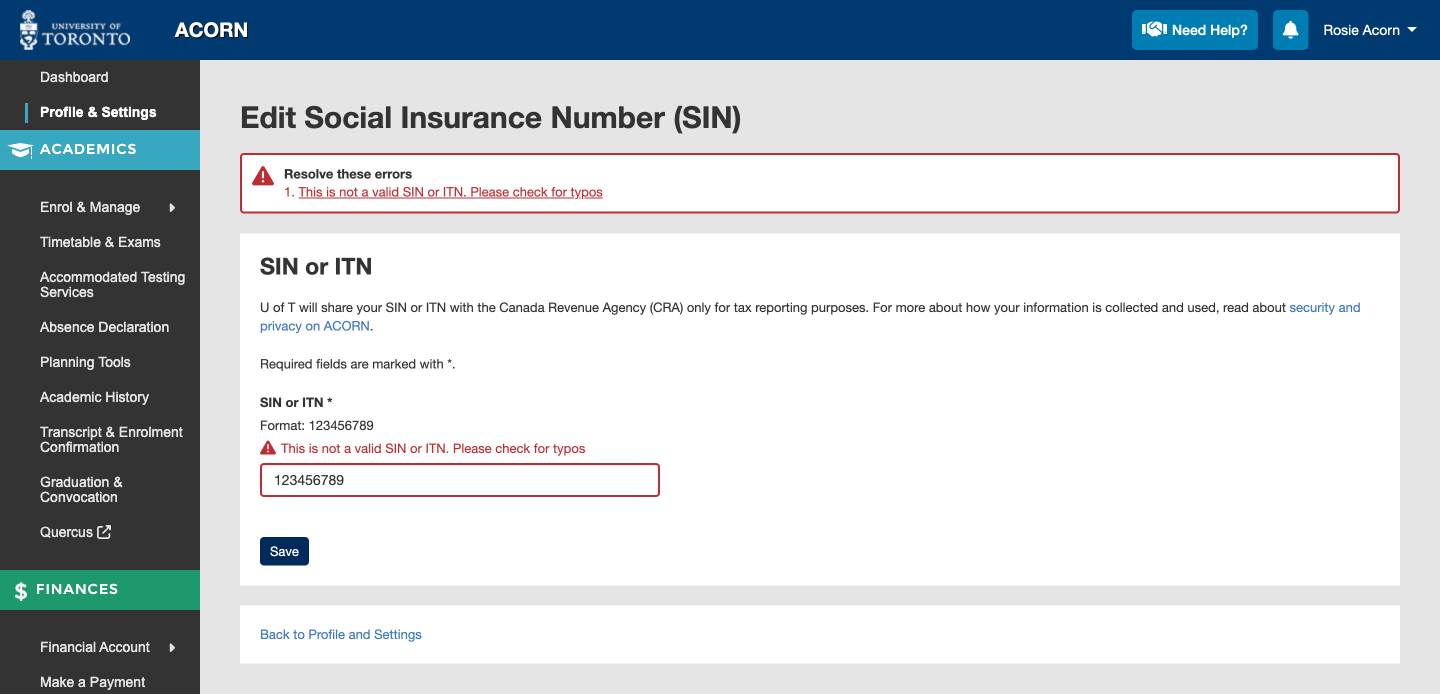
  • The SIN or ITN entered is not valid. There may be a typo, so please check that you entered the number correctly.
  • If you encounter any other errors, please reach out to your registrar for assistance.

An error reads "This is not a valid SIN or ITN. Please check for typos". The SIN entered was "123456789".

Edit my email address

ACORN asks for your official U of T email address so that official correspondence from the university will reach you. You will receive a U of T email address after activating your UTORid and UTMail+ account. Visit the TCard Office website for more information about this process. Once you have your email, you can monitor your UTMail+ inbox.

Once you get your official email address, it should automatically appear in your ACORN profile. In most cases, you should not need to manually update your email address within ACORN. However, you may want to update your email to reflect your alumni email address once you graduate, or to reflect a departmental email if you have one.

  1. To check or update the email address currently saved to ACORN, first go to the Profile and Settings page.
    "Profile and Settings" is highlighted in ACORN's navigation menu.
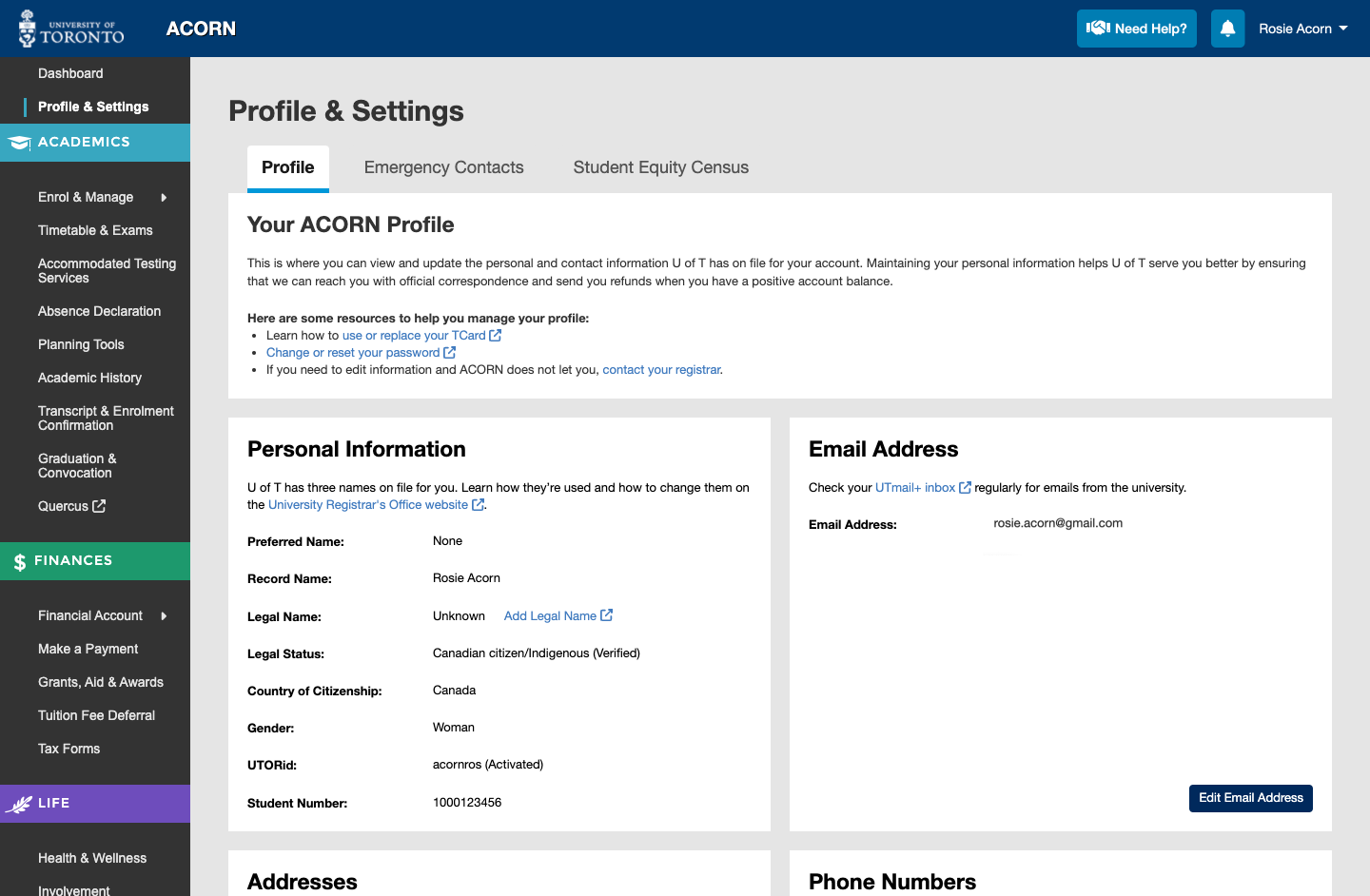
  2. You can view your email address on the Profile tab of the Profile & Settings page. Please ensure that it matches your official email that is used within your UTMail+ inbox. If it is incorrect, select the Edit Email Address button.
    The Profile tab of the Profile & Settings page. The Email Address card displays a gmail email address.
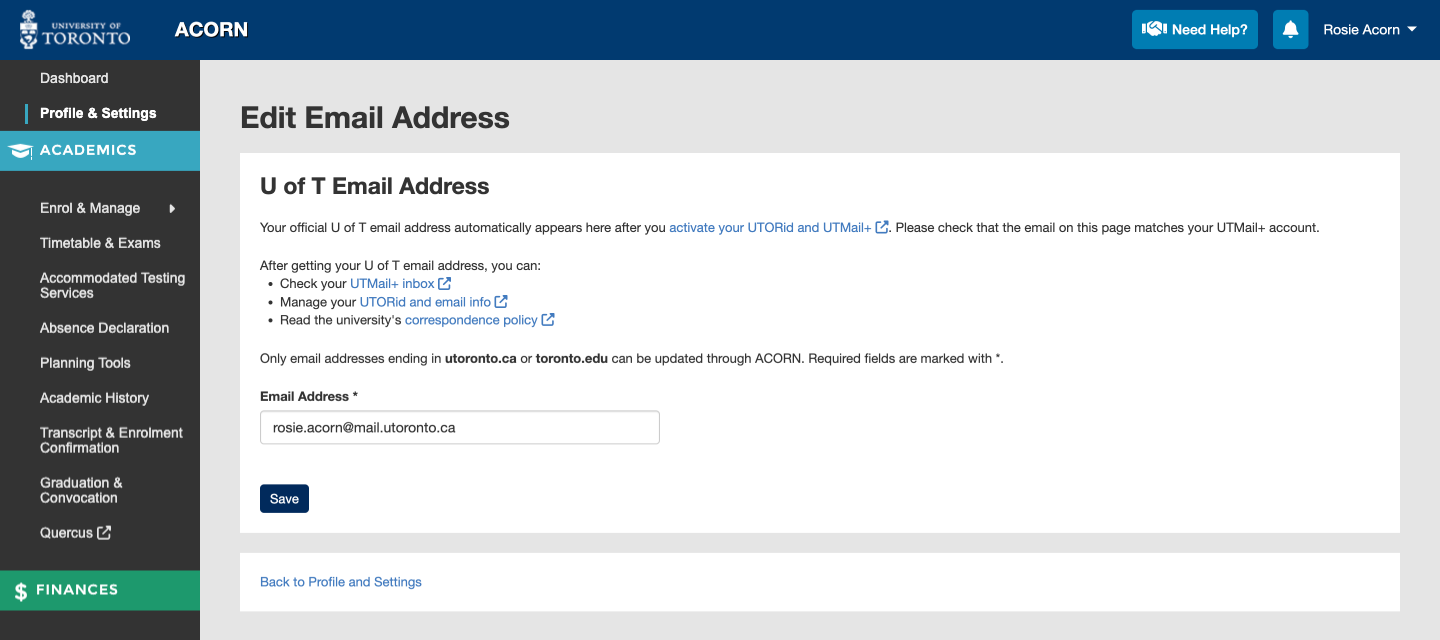
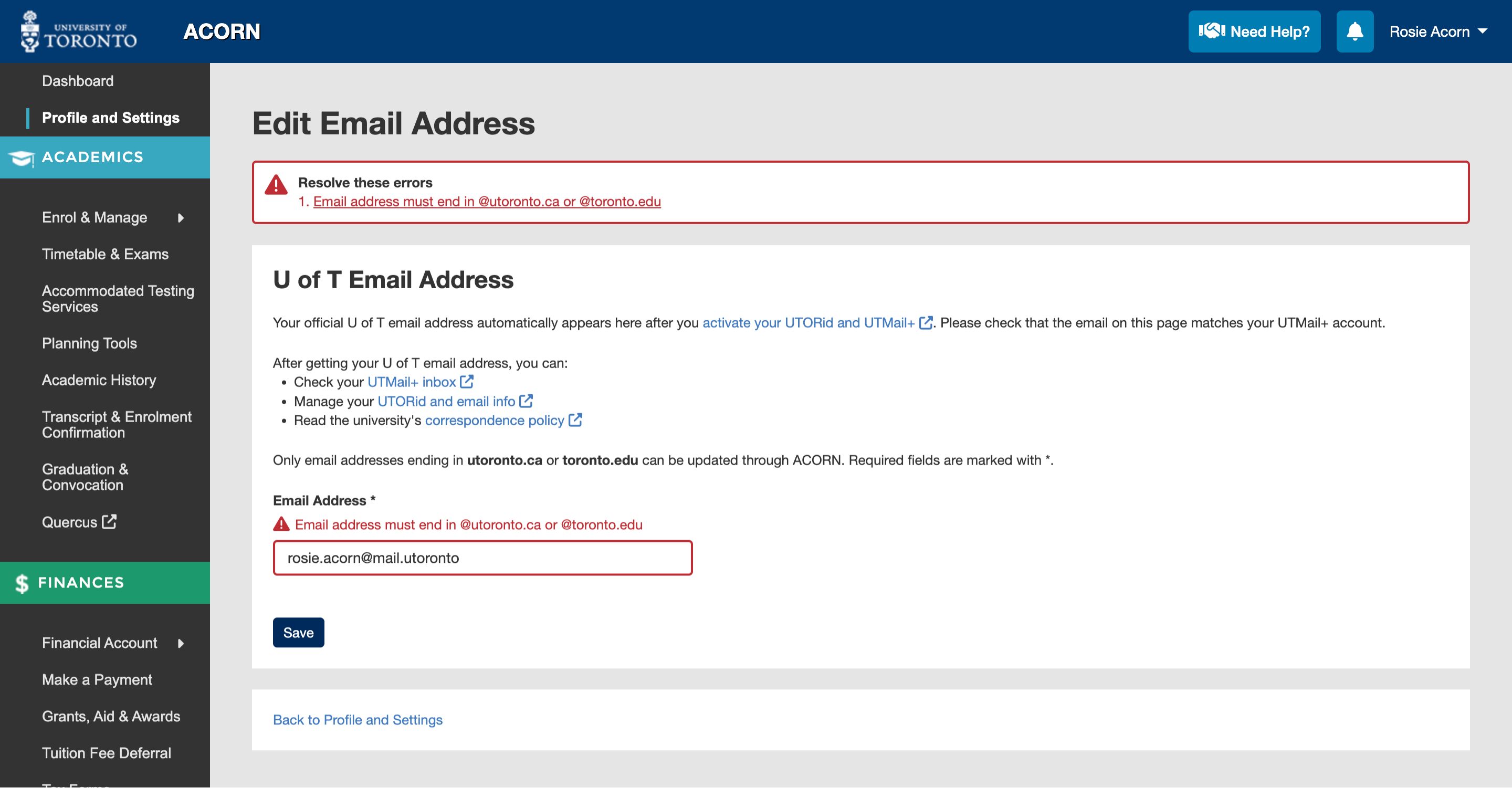
  3. On the Edit page, you can correct your email address. Please ensure that the email ends in mail.utoronto.ca, utoronto.ca or toronto.edu. You cannot currently add non-U of T email addresses to ACORN.The Edit Email Address page contains a place to correct your email address.
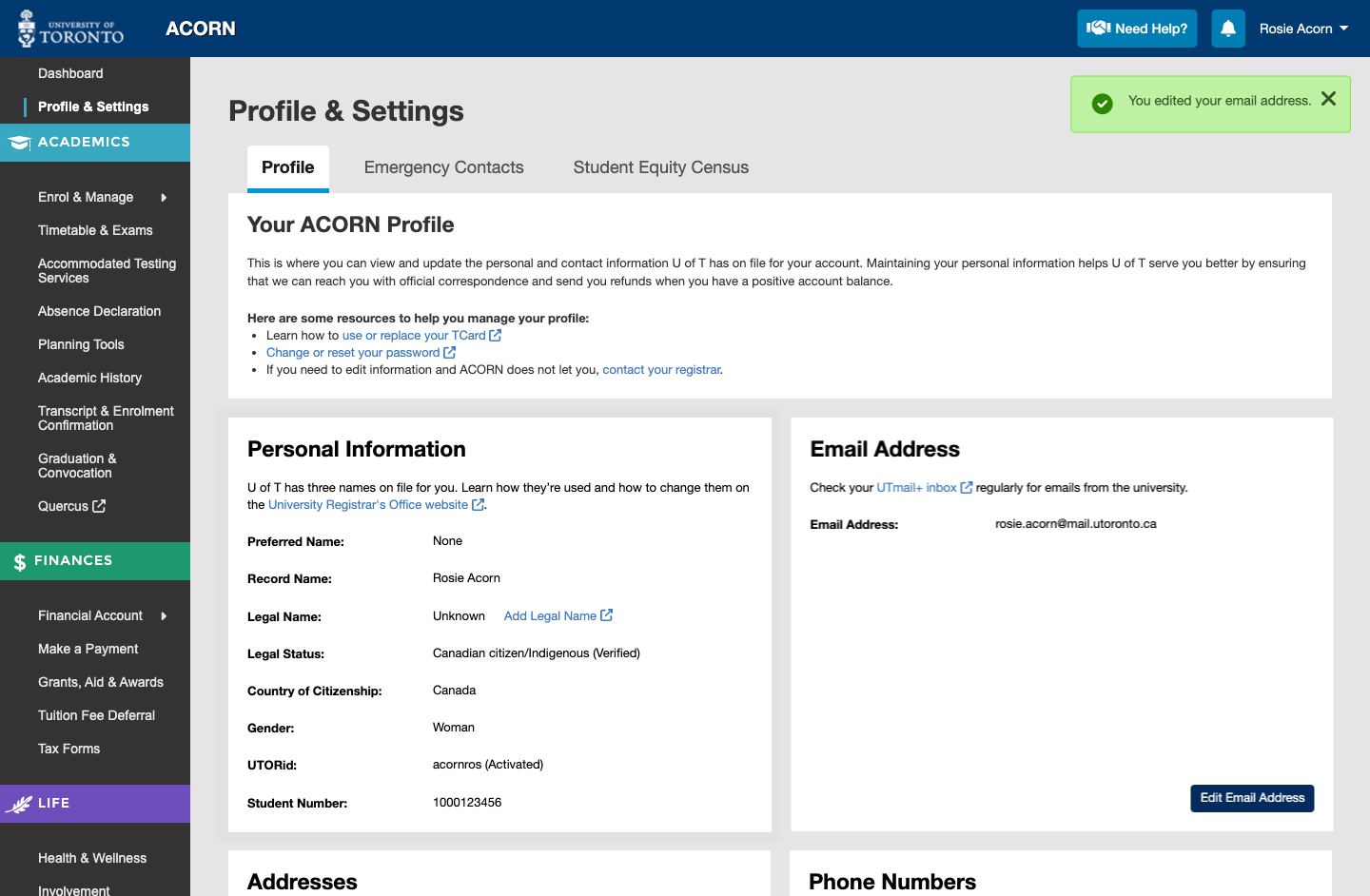
  4. After saving, you will be taken back to your profile and a success message will display. You can edit your email address at any time by selecting the Edit Email Address button.
    A success message appears and the updated email address is displayed.

Email Address Errors

ACORN may tell you about errors that need to be resolved before saving your email. If you encounter an error, the issue will appear at the top of the form. These are examples of errors that you might encounter: 

  • The email address field is left empty. Having your official email address saved to ACORN is mandatory.
  • You entered an email address that does not end in utoronto.ca or toronto.edu. There may be a typo, or you may have entered a non-U of T email address.
  • The email address entered is too long.
  • Unsupported text characters are added. Certain characters cannot be added to ACORN. The error message will tell you which ones are allowed. For email addresses, only letters from a to z, periods and one @ symbol is allowed.
An error reads "Email address must end un @utoronto.ca or @utoronto.edu". The email entered reads "rosie.acorn@mail.utoronto".

In this example, there is a typo. The email address is missing the “.ca” at the end.

How do I get my UTORid, U of T Email and TCard?

To get your UTORid, U of T email address and TCard, visit the TCard Office website and follow the steps provided.

How do I change or reset my password?

Your password is used to access important U of T services such as UTmail+, ACORN and Quercus. If you forgot your password or need to change it because you think it may have been compromised, go to the UTORid Account Management webpage. You will find password management options under “Password and Account Management”.

Why is ACORN telling me that my access is suspended?

If ACORN displays a message about your access being suspended, this is because of inappropriate use. Please contact your faculty or department registrar to request to have your access restored.

Students are expected to use ACORN responsibly, which means that you are not permitted to flood the system with requests or automate actions such as course enrolment.

Make a request for an Accommodated Test during the ATS Exam Period

Accommodated Testing Services coordinates on-campus and online assessment accommodations for students with disabilities who are enrolled in courses offered on the St. George Campus. You can learn more about Accommodated Testing Services here.  

For more information on making a request for accommodated tests outside of the ATS Exam Period and navigating your accommodated bookings dashboard see How do I Make a Request for an Accommodated Test?

To view a walkthrough on creating a booking for an assessment during the ATS Exam Period, see Accommodated Testing Services – How to Request an Accommodated Test During the ATS Exam Period.

  1. After navigating to the Accommodated Testing Services page, you can select the “Request Accommodated Testing” button, where you will be asked a few questions in order to complete your booking request. 
     
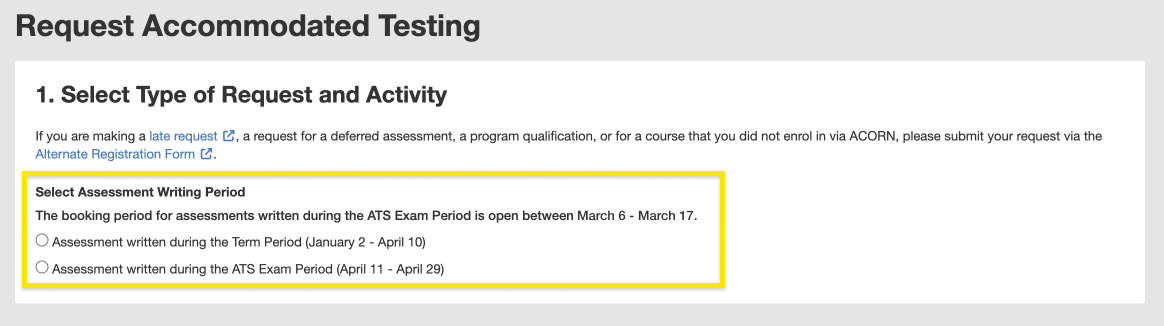
    The first question asks when the assessment for which you are making the request will be written. In this example, if the assessment is written during the ATS Exam Period which is between April 11 – April 29 then you will select the second option, “Assessment written during the ATS Exam Period (April 11 – April 29)”. If the assessment will be written outside of this period, then select the first option, “Assessment written during the Term Period (January 2 – April 10)”.  
     
    You will only be able to make bookings for assessments written during the ATS Exam Period for a limited time using ACORN. For this example, it is between March 6 – March 17. If you miss the deadline on March 17, then you will have to submit a late request using the Alternate Registration Form.

    Screenshot highlighting the "Select Assessment Writing Period" question and options to indicate whether you are writing the assessment during the Term or Exam Period.

    Screenshot highlighting the “Select Assessment Writing Period” question and options to indicate whether you are writing the assessment during the Term or Exam Period.


  2. Once you have selected the assessment period, “Assessment written during the ATS Exam Period” you will be asked to select the course which you are making the booking for. 
    1.  If you have selected a course that does not have any scheduled assessments available, then you must submit your request using the Alternate Registration form.

      Screenshot highlighting the course selection with no scheduled assessments.

      Screenshot highlighting the course selection with no scheduled assessments.

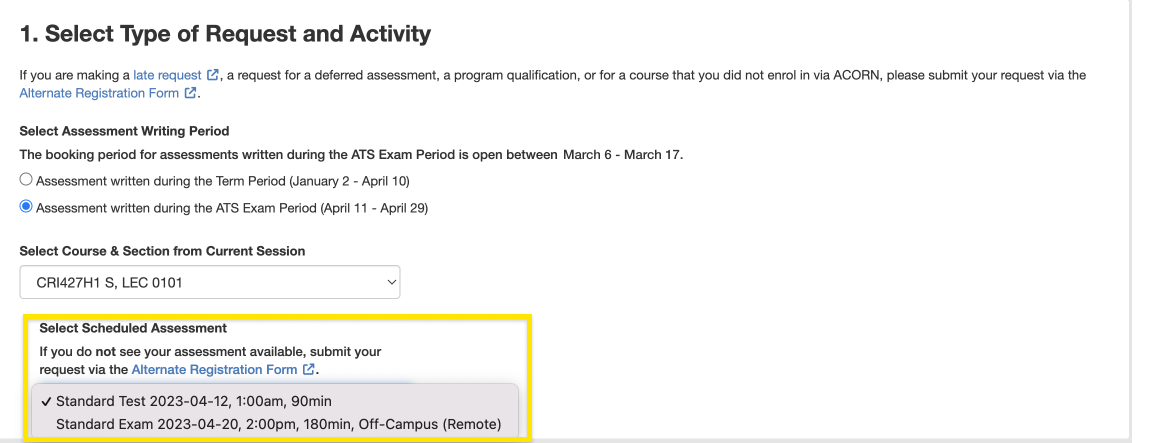
    2. However, if your selected course has scheduled assessments, then you can choose from the dropdown list. For this example, there are two scheduled assessments available: a Standard Test and Standard Exam.  

      Screenshot highlighting the course selection with scheduled assessments.

      Screenshot highlighting the course selection with scheduled assessments.

    3. If there is no location in the option as seen in ”Standard Test”, you must state whether your instructor has indicated that you must complete this assessment in person.

      Screenshot highlighting the assessment writing location questions.

      Screenshot highlighting the assessment writing location questions.

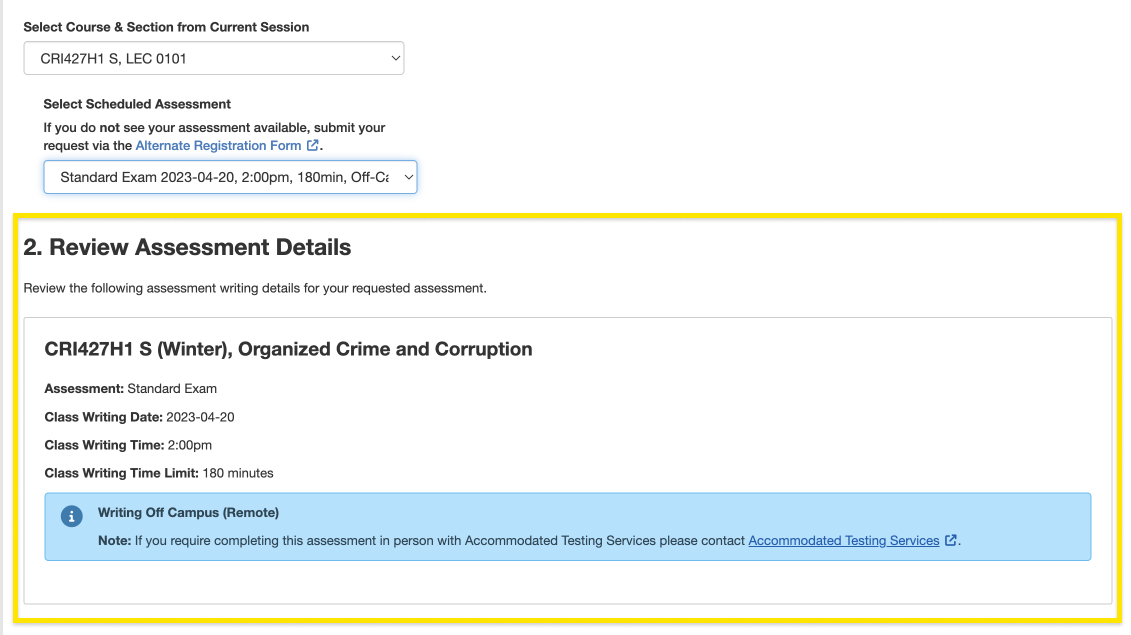
  3. After you complete the assessment writing location questions or if you selected an assessment with a location that is included, for e.g., as shown in the dropdown option for “Standard Exam” in the screenshot above, then from here you can review your assessment details, including the Class Writing Date, Time, Time Limit and Location.

    Screenshot highlighting the second step of the form, Step 2. Review Assessment Details.

    Screenshot highlighting the second step of the form, Step 2. Review Assessment Details.

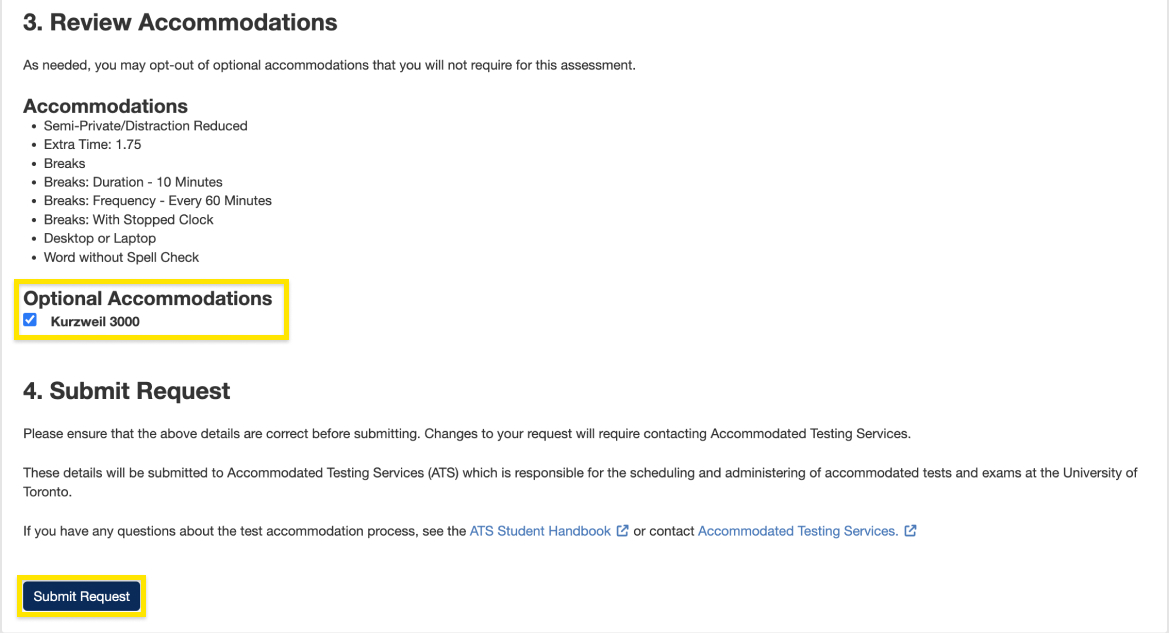
  4. After reviewing your assessment details, you can review your accommodations and submit your request by clicking “Submit Request”. If you have any optional accommodations you can opt in for or opt out of this request by clicking on the checkbox.

    Screenshot highlighting the third and fourth steps of the form, Step 3. Review Accommodations and Step 4. Submit Request.

    Screenshot highlighting the third and fourth steps of the form, Step 3. Review Accommodations and Step 4. Submit Request.

Complete my Profile Checklist

The Profile Checklist is a list of to-do items on your ACORN Dashboard that tracks the status of personal information that U of T has on file for you. Keeping your profile up to date ensures that U of T can contact you with important information and reach you in an emergency. There are critical items that you must complete and important items that are optional, such as adding direct deposit info so that you get refunds on time. 

An example of a profile checklist with most items incomplete

Once you fully complete your checklist, the items will go away. If you move or your personal information changes, please update it in ACORN so that the university can reach you.

Your Critical To-dos

Your critical to-dos are to fill out your mailing and permanent address, primary phone number, emergency contact and complete the Student Equity Census. These can be done in ACORN’s Profile & Settings area. U of T needs this personal information to reach you with official communications or in case of an emergency. 

The census is crucial as it ensures that U of T can prioritize its commitment to equity, diversity and inclusion. Visit the Student Equity Census Dashboard to learn more and see the data collected.

ACORN will display a deadline by which you need to complete your critical to-dos. This deadline is written in your Profile Checklist and in a message near the top of every ACORN page. If you haven’t completed your critical to-dos before the deadline, certain areas within ACORN such as your courses, timetable and academic history will become unavailable. Please complete your critical to-dos as soon as you can to avoid this.

You will always be able to reach the Need Help, Health & Wellness, Accessibility & Equity, Absence Declaration and Accommodated Testing Services areas.

If the deadline passes and you still have incomplete critical to-dos, several places in ACORN will be unavailable until you complete your critical to-dos in the checklist.

Your Important To-dos

These important to-dos involve verifying your legal status, activating your UTORid, picking up your TCard, adding direct deposit information. You may also want to add your SIN or ITN if you plan on working, doing Canadian taxes or accessing government benefits. 

These to-dos are not mandatory, and will not make any areas of ACORN unavailable if you do not complete them. However, several of them are part of the process that every student goes through to get their TCard, UTORid and UTMail+ email account. Adding your direct deposit information will also ensure that you get refunds faster from U of T.

Troubleshooting

  • If you completed an important to-do but it is not showing as complete, please try visiting ACORN the next day, and then log out and in again.
  • If you need help with your checklist or profile information, please reach out to your divisional registrar.