
ACORN is U of T’s student information system, and it stands for Accessible Campus Online Resource Network. Students use ACORN to enrol in courses, check fees and finances, update address and contact information and much more. The purpose of ACORN is to provide a more convenient, personalized and guided experience for students using U of T’s online services.
Who to contact for assistance with difficulty with Acrobat Reader or printing the T4A form?
If you are having a problem on a personal computer, you can leave us your comments or questions using the ACORN feedback button located in the top-right corner of ACORN.
If your computer is attached to a local area network (LAN), you should contact your LAN administrator or technical support person for support.
What is ACORN’s Peak Load Mode?
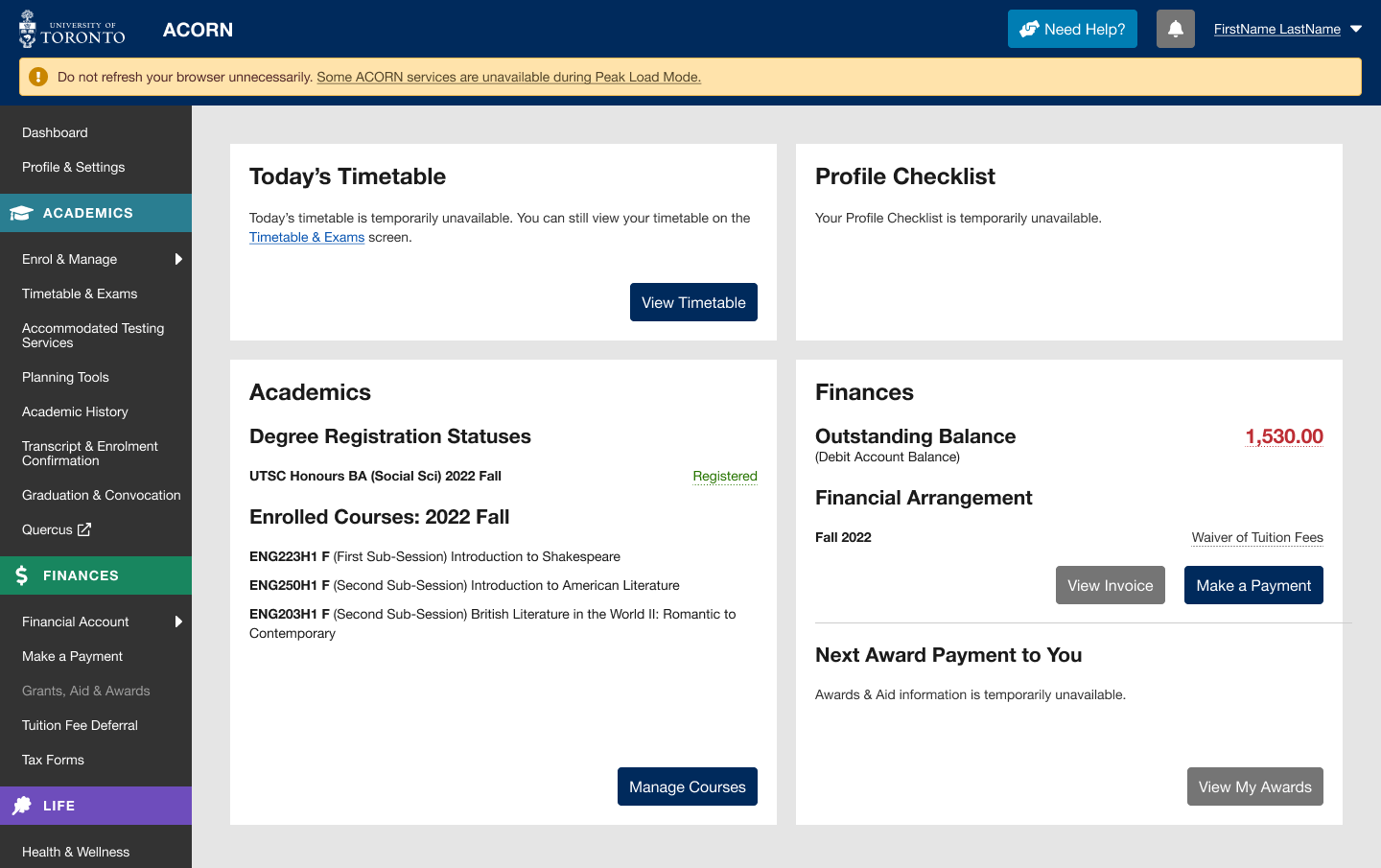
ACORN’s Peak Load Mode is a simplified version of ACORN that is used on peak enrolment days to reduce load on the system and improve performance. An example of a peak enrolment day is when priority course enrolment controls are removed for Arts and Science courses in August. The University will announce these dates ahead of time.
Note: When peak load mode is active, please do not refresh your browser while your course enrolment actions (e.g. enrol, switch section, drop) are in progress, or take the same enrolment actions in multiple browser tabs. Many students will be using ACORN at the same time, so enrolment actions will take longer than usual to complete, but are in progress even if the system is slow to respond. Refreshing your browser or repeatedly requesting the same action will only slow the system down further and increase the likelihood of your request being rejected entirely.
Why are some of ACORN’s services temporarily unavailable?
Due to the high volume of traffic during key enrolment days, the ACORN team has temporarily removed some ACORN features not essential to course and program enrolment to reduce the load on the system and its supporting infrastructure.
What features and information are unavailable during peak load periods?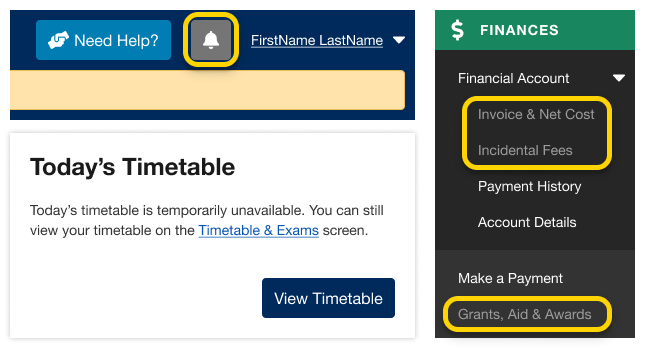
- Notifications
- Today’s Timetable on your Dashboard
- Your Invoice & Net Cost
- Financial awards and aid information
- Multiple degree invitations, if applicable
The Courses and Programs areas of ACORN are always available during Peak Load Mode. If you need help, visit ACORN’s Need Help area.
When will full functionality be restored?
ACORN’s “Peak Load Mode” will only be used on isolated high-traffic dates. Regular functionality will be restored within 24 hours.
When was ACORN launched?
ACORN was first released to students on June 22, 2015.
Are there opportunities for students to contribute to ACORN?
Yes! The ACORN User Experience Design Team works with many students at U of T from various academic backgrounds to help make ACORN and other online tools better. To become a part of the Student Advisory Team, learn more and sign up on this website if you are interested.
We often hold usability activities remotely using Microsoft Teams or in our User Experience Design lab at 215 Huron street. During these 30-45 minute sessions, we invite U of T students to come in and talk about their student experience, or test new designs and features that are in the works. It’s an opportunity for you to see what the ACORN team is currently working on, learn about our UX design process, and it also gives us a chance to meet you and find out how we can improve ACORN and other student services to make your student life easier. If you participate in 5 sessions, you’ll also get a credit on your Co-Curricular Record (CCR)!
We do hire work-study students from time to time, and when positions are available you can find them on the Career & Co-Curricular Learning Network (CLNx).
Who receives a T4A?
- The Canada Revenue Agency (CRA) requires the University to provide a T4A slip to all University of Toronto students to report other income received in the calendar year (January to December) in the form of: scholarship, bursary, or fellowship payments paid to the student;
- The value of any tuition waiver for dependant children and/or a spouse (effective in calendar year 2007);
- University subsidy of interest on University-arranged loan programs such as the Scotiabank Loan.
Which browsers are supported by ACORN?
The following browser versions are supported, however, try your best to keep your browsers up to date for the best experience.
Chrome: 46+
Safari: 9+
Firefox: 45+
Edge: 14+
Internet Explorer: 11+
Find my enrolment start date and time
Students from different divisions at U of T enrol in courses at different times. Learn when your division has set up your enrolment time by visiting their website. They may also send you an email about it. Once your division has setup your enrolment start time—usually a week or so prior to your enrolment day—log into ACORN to view your start date and time on the Dashboard.

This is an example of a blue message that will appear on your ACORN Dashboard. Yours will look a little different, as the date and time will be personalized to your program and year of study.
Where are other useful sources of student tax information?
The Canada Revenue Agency (CRA) website provides information for students on a wide range of taxation topics. In addition, CRA’s annual Students and Income Tax brochure is a useful source of information for students.
Resolve a timetable conflict
ACORN will not take any additional actions if you enrol in courses that result in a conflict (i.e., it will not drop any course activities on your behalf). It is up to you to resolve any conflicts. You can either leave the courses as they are or enrol in alternative options.
You can try to resolve the conflict in a few different ways:
- Explore different combinations of course sections (Lectures, Tutorials and Practicals)
- See if you can take one of the courses at a later term. Try using Degree Explorer to experiment with your options.
- Select a different course if one of the conflicting courses is not required to complete your program or degree